
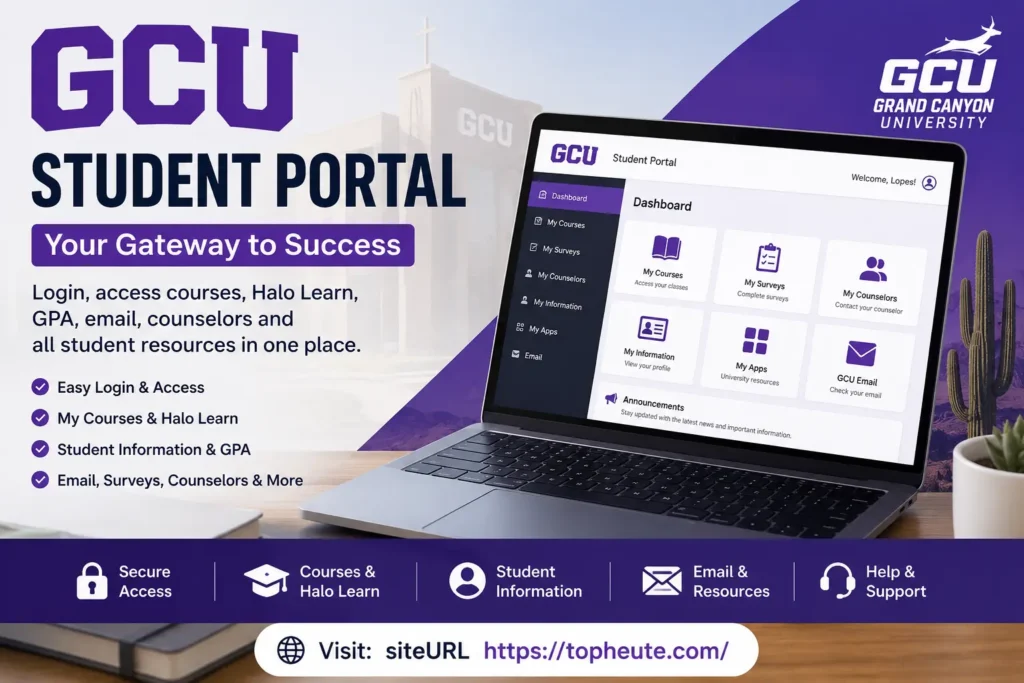
For students at Grand Canyon University, the online student system is more than a place to sign in. It is the starting point for accessing courses, academic information, counselor details, surveys, applications and other digital resources.
If you are new to GCU, the number of names can make the process confusing. You may see terms such as Student Access, GCU portal login, Halo Learn, My Courses, My Apps and GCU email and wonder which one you actually need. The good news is that these services fit together.
This guide explains the entire process in plain English. You will learn how to sign in, what to expect on the dashboard, where to find classes, how Halo Learn fits into your coursework, what to do when a course is missing, how account recovery works and where to get technical help.
The goal is simple: give a new or returning student enough information to solve common access problems without having to guess what each GCU system does.
What Is the GCU Student Portal?
The GCU student portal is Grand Canyon University’s central online gateway for student resources. After signing in, students can reach areas such as courses, surveys, counselor information, personal information and connected applications.
Think of it as the front door to your digital student account. The portal is not the same thing as the learning management system used for classwork. Instead, it connects you to several university resources, including the area where you can reach your active classes.
One important distinction is that Grand Canyon University uses Halo as its learning management system. The student portal helps you locate your courses, while Halo is where course content and online classroom activities are handled.
Who is the portal for?
The student-facing area is intended for GCU students. The same gateway also presents separate access options for faculty and parents, so selecting the correct access type matters when you first arrive at the sign-in page.
For a student, the normal route is Student Access. Your university credentials are then used to authenticate your account.
Why does the portal matter?
Your digital student account brings several services together. Instead of remembering a different starting point for every academic task, you can use the portal as your central navigation point.
Common tasks include:
• Opening active courses
• Finding counselor information
• Viewing student information
• Accessing surveys
• Reaching connected applications
• Moving into Halo Learn for classroom work
• Managing access to university resources
GCU Student Portal Login: How to Sign In
The sign-in process is straightforward once your GCU account has been established.
1. Open the official GCU portal gateway.
2. Choose Student Access rather than Faculty Access or Parent Access.
3. Enter your GCU username in the format requested by the sign-in screen.
4. Continue to the password step.
5. Enter the password associated with your account.
6. Complete any additional identity verification that appears.
7. After successful authentication, wait for the student dashboard to load.
GCU’s technical support material describes the student sign-in flow as using a GCU username followed by the university’s student email domain and the password established during initial access.
What if the sign-in screen asks you to stay signed in?
If the device is your own and you are comfortable keeping the session active, you may choose the option that reduces repeated sign-ins. On a shared, public or borrowed computer, it is safer not to keep your account signed in.
Why should you use the official gateway instead of a random login page?
Search results can contain third-party websites that discuss GCU access. They are not necessarily the university’s authentication service. For security, start from the official university gateway and check that you are entering credentials into the expected GCU sign-in environment.
Never give your password to another person who claims they need it to “fix” your account.
How to Set Up Your GCU Student Portal Account
New students normally need to establish their university account before they can use student services. The exact screens can change as university authentication systems are updated, so follow the instructions presented during your official GCU onboarding process.
A typical setup involves receiving or creating your GCU username, establishing a password and completing identity or security requirements.
During first-time access:
• Use the credentials provided through your GCU enrollment or onboarding process.
• Create a strong password when prompted.
• Record your username somewhere secure.
• Complete required authentication steps.
• Make sure you can successfully sign in before your first course activity is due.
Do not create a second account because your first login fails. A duplicate account can create more confusion and may not be connected to your enrollment record.
What should a new student do before classes begin?
Sign in early rather than waiting until the first assignment is due. Check that you can open the dashboard, locate your courses and enter the classroom environment. This gives you time to solve account or enrollment issues before they affect your coursework.
GCU Student Portal Dashboard
After successful authentication, the dashboard becomes your central starting point. Its exact appearance can change as GCU updates its digital services, but the purpose remains the same: provide access to student resources from one place.
The dashboard can include areas for:
• My Courses
• My Surveys
• My Counselors
• My Information
• My Apps
• Other university resources
Do not assume that every tile or application has the same purpose. Some areas provide information, while others launch another service.
For example, My Courses is connected to your active classes, while My Counselors is focused on finding your assigned counselor information. My Apps can provide access to additional university applications.
How should you approach the dashboard if you are new?
Start with the task you actually need to complete. If you need classwork, begin with My Courses. If you need personal or academic account information, look in My Information. If you need help identifying your counselor, open My Counselors.
How to Navigate the GCU Student Portal
Good navigation is mostly about understanding what each section is designed to do.
Use My Courses when your goal is to reach a current class. Use My Surveys when GCU has assigned a survey or questionnaire. Use My Counselors when you need counselor details. Use My Information when you need to review student information. Use My Apps when you need another connected university service.
A useful habit is to avoid opening multiple systems randomly. Start from the dashboard and follow the section that matches your task.
If a button opens another page or application, that does not necessarily mean you have left the university environment. Some portal functions are designed specifically to connect you with another GCU service.
My Courses in the GCU Student Portal
My Courses is one of the most important areas for students because it provides access to active classes.
GCU’s technical support training explains that students can begin from the portal homepage, locate their courses and then move into Halo Learn. This makes the portal an important starting point for online coursework.
What should you expect to see?
Your course list depends on your enrollment and the classes currently available to your account. A newly registered course may not immediately appear in every system, and course availability can depend on the official course start date or other enrollment processes.
When you open a course, the next step may take you into Halo, GCU’s learning management system.
Keep in mind that the portal and classroom are different layers of the same student experience. The portal helps you reach the course; Halo provides the online classroom environment.
How to Access GCU Courses
To reach an active class, sign in to your student account and open My Courses. Select the appropriate course from the available list. Follow the course link into the learning environment when prompted.
Once inside the class, you may find items such as:
• Course materials
• Weekly or topic-based learning content
• Assignments
• Assessments
• Discussion areas
• Announcements
• Messages
• Instructor-provided resources
The exact layout depends on the course and how the learning environment is configured.
If you are taking online classes, make course access part of your first-day checklist. Do not wait until the first deadline to discover that you cannot open the classroom.
What if you can see the course but cannot open a particular item?
First, check whether the item has a release date or prerequisite. Some content becomes available according to the course schedule. If the problem affects only one assignment or resource, it may be a course-specific issue rather than a general account problem.
Why Are My Courses Not Showing in the GCU Student Portal?
A missing course does not automatically mean your account is broken.
Several situations can explain why a class is not visible:
• The course has not reached its official start point.
• Enrollment has not fully processed.
• The class is not currently active.
• You are checking the wrong student account.
• The portal session needs to be refreshed.
• There is a temporary technical problem.
• The course has a different availability schedule.
Start with the simplest checks. Sign out and sign back in, confirm that you are using the correct account and look at your current enrollment information.
If the class should already be available and other students or university staff have confirmed that it should appear, contact the appropriate GCU support or academic contact. Have your student information and course details ready so the issue can be investigated efficiently.
Should you repeatedly refresh the page?
A refresh can help with a temporary loading problem, but repeatedly refreshing will not make an enrollment record appear if the class has not yet been activated for your account.
My Surveys in the GCU Student Portal
The My Surveys area is designed for student surveys and related university questionnaires that are made available to your account.
If you see a survey notification, read the instructions before submitting it. Some surveys may be associated with particular courses, student experiences or university processes.
A survey area is different from your coursework. Completing a survey should not be confused with submitting an academic assignment unless the university specifically identifies it as part of a course requirement.
If a survey appears unexpectedly, check its description and due date. If you are unsure why you received it, ask the relevant university office or support contact rather than ignoring it.
My Counselors in the GCU Student Portal
My Counselors provides a place to find information about your assigned counselor or counseling support.
A counselor can be an important point of contact when you need help understanding your academic path, course planning or other student matters.
When contacting a counselor, make your message specific. Include what you are trying to accomplish, what you have already checked and what you need clarified.
For example, instead of writing “I have a problem with my classes,” explain whether you cannot see a course, need help understanding your schedule or are trying to plan your next enrollment step.
This saves time and makes it easier for the appropriate person to understand your situation.
My Information in the GCU Student Portal
My Information is the area used to access student-related information connected to your university account.
The exact information available can depend on your student status and the current portal configuration. Treat this section as a place to review your account information rather than assuming every academic record is stored in one screen.
Check your information periodically, especially when you are a new student or have recently changed personal details.
Why is checking your information important?
Incorrect contact or personal information can create communication problems. If your university record needs a formal change, use the process GCU provides rather than simply assuming that changing a display field automatically changes every university record.
How to Check Your Student ID and GPA
Students often search for a quick way to find their student ID or GPA, but these details may appear in different areas of the university’s student systems depending on the current interface.
Start with My Information and the relevant academic or student-record area available to your account.
Your GPA should not be confused with a single course grade. A course grade reflects performance in an individual class, while GPA represents an average calculated under the university’s academic rules.
If your GPA appears different from what you calculated yourself, check the university’s grading and academic policies before assuming the portal is incorrect. Factors such as credit hours, grade values and the difference between term and cumulative calculations can affect the result.
Your student ID is also important when communicating with university offices. Keep it private and avoid posting it publicly.
How to Update Your Personal Information
If your contact or personal information changes, use the official student process provided by GCU for making the update.
Before changing anything, check which information you are editing. A portal profile field may not be the same as an official academic record.
Common examples of information students may need to review include:
• Mailing or contact information
• Phone details
• Personal profile information
• Communication preferences
• Other account-related details
If an important legal or academic record requires documentation, follow the university’s specific procedure rather than relying only on a dashboard edit.
After making a change, review the account again to confirm that the updated information appears where expected.
My Apps in the GCU Student Portal
My Apps is designed to provide access to additional applications and digital services connected with the student experience.
This section can be especially useful when you know you need a university application but are unsure where to find it.
Think of My Apps as an application launch area rather than a replacement for every other student service.
Why are there multiple applications?
Universities use specialized systems for different jobs. A learning management system handles classes, email handles communication and another application may handle a specific academic or administrative function.
The portal brings these resources together so you have a consistent starting point.
How to Customize My Apps
The available customization options can depend on the current portal interface and the applications assigned to your account.
If customization controls are available, use them to make frequently used resources easier to reach. Avoid removing or hiding an application simply because you do not recognize it. Some resources may become important later in your program.
If a customization option is not visible, do not assume that your account is defective. Portal features can differ by account type and university system updates.
GCU Student Portal and Halo Learn
The biggest source of confusion for new students is often the difference between the portal and Halo Learn.
The simplest explanation is:
The portal is the central student gateway. Halo is the learning management system used for course activity.
GCU’s own technical support material describes a workflow in which students sign into the portal, locate their courses and then enter Halo Learn. GCU also describes Halo as the online classroom platform for online coursework.
That distinction matters because searching for a “portal” when you really need an assignment can send you in circles.
If your goal is to check an assignment, read course material, participate in a discussion or review classroom content, you generally need the course environment rather than just the portal dashboard.
Explore more amazing, latest, and insightful articles Visit Chad Michael Murray.
How to Access Halo Learn Through the GCU Student Portal
Start by signing into your student account.
1. Open the student dashboard.
2. Go to My Courses.
3. Find the active course you want to open.
4. Select the course.
5. Follow the available option into Halo Learn.
6. Wait for the classroom to load.
7. Confirm that you are viewing the correct course before beginning work.
GCU’s support material specifically describes My Courses as the route students can use to reach active Halo Learn classrooms.
If you have several classes, check the course name and instructor information before submitting anything. This simple check can prevent work from being completed in the wrong classroom.
What if Halo opens but the class is missing?
First determine whether the course is active and visible in My Courses. If the class is missing from the portal itself, the issue may be related to enrollment or course availability rather than Halo.
What Can You Do in Halo Learn?
Halo Learn functions as the online classroom environment. Depending on the course, students may use it to access learning materials, assignments, assessments, discussions, announcements, messages and instructor resources.
GCU describes Halo as its learning management system for online coursework. Course structures can vary, so one class may organize content differently from another.
Common activities include:
• Reading assigned material
• Reviewing course topics
• Completing assessments
• Submitting assignments
• Participating in discussion forums
• Reading announcements
• Checking instructor-provided resources
• Reviewing available grades or feedback
The Halo Learn mobile application is intended as a companion application for alerts rather than a complete replacement for the Halo website. That distinction is important for students who expect the mobile app to provide every classroom function.
For important assignments, use the full classroom environment when necessary and verify that your submission has been recorded.
GCU Student Email Access
University email is an important part of student communication. Your GCU account and related Microsoft services may be used for messages from the university, instructors and other academic contacts.
Check your student email regularly, especially around course start dates, enrollment periods and important administrative deadlines.
Do not assume that an email sent to a personal address will replace communication sent to your university account.
A good routine is to:
• Check your university inbox frequently.
• Read messages from instructors and university offices.
• Watch for account or security notifications.
• Keep important academic messages organized.
• Avoid forwarding sensitive account information to unknown addresses.
If you are trying to access Microsoft 365 services through your university account, use the sign-in method and credentials provided by GCU rather than creating an unrelated personal account.
GCU Student Portal Password Reset
If you forget your password, use the official GCU account recovery or password-reset process rather than repeatedly guessing.
Too many incorrect attempts can create additional security problems.
Before starting recovery, make sure you know the username associated with your student account. Follow the verification steps presented by the university.
A secure password should be:
• Unique to your university account
• Difficult for another person to guess
• Not based on obvious personal information
• Stored securely if you use a password manager
Never send your password to technical support through email, chat or a message. Legitimate support staff should use appropriate verification procedures rather than asking you to reveal your password.
GCU Student Portal MFA and Account Authentication
Multi-factor authentication, commonly called MFA, adds another layer of protection to your account.
Instead of relying only on a password, MFA can require another verification method. This helps protect your account if your password is exposed.
When authentication is requested:
1. Read the sign-in prompt carefully.
2. Verify that you initiated the login.
3. Complete the requested verification.
4. Do not approve unexpected authentication requests.
An unexpected MFA request can be a warning sign that someone may be attempting to use your credentials. If you receive repeated prompts you did not initiate, do not blindly approve them. Secure your account and contact the appropriate GCU support channel.
GCU Student Portal Login Problems and Solutions
Login problems are not all caused by the same thing. The fastest solution is to identify what happens after you attempt to sign in.
If your username is rejected:
• Check spelling and capitalization.
• Confirm that you are using the correct student username.
• Make sure you are on the student sign-in path.
If your password is rejected:
• Confirm that you entered the current password.
• Check whether your keyboard has Caps Lock enabled.
• Use the official recovery process if you cannot remember it.
If MFA fails:
• Check that you are using the expected verification method.
• Do not approve an unexpected request.
• Restart the authentication process if the prompt has expired.
If the page keeps loading:
• Refresh once.
• Try a current browser.
• Close unnecessary tabs.
• Clear a stale session by signing out and starting again.
• Test another trusted device or network if appropriate.
If only one GCU service fails while other services work:
• The problem may be specific to that application.
• Check whether the issue occurs in another browser.
• Note the exact error message.
• Contact technical support if the problem continues.
What information should you record before contacting support?
Write down the time the problem occurred, the service you were trying to open, the device and browser you used and the exact error message. A screenshot can also help, provided it does not expose your password, MFA codes or other sensitive information.
GCU Student Portal Not Working: What to Do
When the entire portal appears unavailable, first determine whether the problem is local to your device or broader.
Try these basic checks:
1. Confirm your internet connection.
2. Open another trusted website to see whether your connection works.
3. Restart the browser.
4. Try a different current browser.
5. Sign in again from a clean session.
6. Check whether the problem affects only one GCU service or multiple services.
7. Contact GCU Technical Support if the problem remains.
Avoid installing unknown browser extensions or software just because a website claims they will “repair” your portal.
If the portal loads but a specific application does not, treat it as an application-specific problem. If nothing loads at all, document the error and contact support.
A common mistake is assuming that every technical issue requires a password reset. If your credentials work in one GCU service but another service fails, changing your password may not solve the actual problem.
GCU Student” Portal for Online Students
Online students depend heavily on digital systems because much of their coursework is delivered through the learning environment.
The portal provides the starting point for reaching active classes, while Halo Learn provides the classroom experience.
A useful routine for online students is:
• Sign in before the first course activity.
• Confirm that every expected course appears.
• Open each active class.
• Review announcements.
• Check course materials and due dates.
• Verify that you know how assignments are submitted.
• Confirm that you can access university communication.
• Save important support information before you need it.
GCU’s online education materials describe Halo as the learning management system used for online classes. Course schedules and start dates can vary, so students should pay attention to the official information associated with their enrollment.
If your class does not appear when you expect it to, do not wait until the assignment deadline. Investigate the issue early.
GCU Student Portal for New Students
New students should spend a little time learning the digital environment before their first major assignment.
Your first checklist should include:
1. Activate or confirm your university account.
2. Complete required authentication steps.
3. Sign into the student dashboard.
4. Find My Courses.
5. Open an active course.
6. Enter Halo Learn.
7. Check your student information.
8. Identify your counselor.
9. Check university email.
10. Learn how to contact technical support.
What should you do if everything looks unfamiliar?
Do not try to memorize every application at once. Learn the basic path first: account sign-in → dashboard → My Courses → class → Halo. Once that route is comfortable, explore the other areas as needed.
New students can also benefit from testing access before a deadline. Technical problems are much easier to solve when you have several hours or days available instead of a few minutes before an assignment closes.
GCU Student Portal Technical Support
Technical Support is the appropriate place to turn when you have a genuine account, login or technology problem that you cannot solve with normal troubleshooting.
Before contacting support, prepare useful information:
• Your name and student identification details as requested by support
• The service that is not working
• The device you are using
• Your browser or app
• The approximate time of the problem
• The exact error message
• What you have already tried
Never provide your password or one-time authentication code to another person.
For course-content questions, distinguish between technical and academic help. Technical Support can help with access and technology issues, but an instructor or appropriate academic contact may be better suited to questions about assignment instructions, grading or course content.
This distinction can save time. If you can open the class but do not understand an assignment, changing your password will not solve the problem.
FAQs
Can I access my classes from the GCU portal?
Yes. Students can use My Courses to locate active classes and move into the Halo Learn classroom environment when the course is available.
Is Halo Learn the same as the student portal?
No. The portal is the central student gateway, while Halo Learn is GCU’s learning management system and online classroom environment.
Why can’t I see my GCU course?
A course may not appear because it is not yet active, enrollment has not fully processed, the wrong account is being used or there is a temporary technical issue. Confirm your enrollment and account first, then contact the appropriate GCU support team if the course should already be available.
How do I reset my GCU password?
Use the official GCU account recovery or password-reset process associated with your student account. Avoid repeatedly guessing your password and never share it with another person.
What is My Courses used for?
My Courses is the portal area used to locate your active classes. From there, available course links can take you into Halo Learn.
What is My Apps used for?
My Apps provides access to connected university applications and digital resources assigned to your account. The exact applications available can vary.
Can I use the Halo Learn mobile app for my classes?
The mobile application is designed as a companion for Halo Learn and provides alerts and related mobile functions. It is not intended to replace the full Halo Learn website for every classroom activity.
How do I find my counselor?
Open the My Counselors area in your student dashboard to find the counselor information available to your account.
What should I do if the portal is not working?
Check your internet connection, restart your browser, try another current browser or device, and determine whether the issue affects one service or the entire system. If the problem continues, contact GCU Technical Support with the exact error information.
Is my GCU password the same as my personal email password?
It should not be assumed that a university account and a personal email account use the same credentials. Use the credentials established for your GCU account and follow the university’s authentication process.
Can I access university resources from my phone?
Many GCU services can be accessed through a mobile browser, and some services have companion applications. The mobile experience can differ from the desktop experience, so use the full web environment when a task requires features that are not available in a mobile app.
What should I do before my first online class?
Confirm that your account works, check your student dashboard, find your course in My Courses, enter Halo Learn, review announcements and make sure you can access your university communication. Doing this early gives you time to resolve technical issues.
Conclusion
The easiest way to understand GCU’s digital student environment is to think of it as a connected system rather than one single website.
Your student account provides the identity you use to sign in. The dashboard acts as your central starting point. My Courses helps you reach active classes, and Halo Learn provides the online classroom environment. Other sections such as My Surveys, My Counselors, My Information and My Apps handle different parts of the student experience.
When something goes wrong, identify the exact point of failure before changing anything. A missing course may be an enrollment or availability issue, while a failed password is an account-access issue and an assignment question is usually an academic issue.
For new students, the most useful first step is simple: sign in early, explore the dashboard, open your courses and make sure you know how to reach your classroom before you need to submit work.
Keeping that basic workflow in mind makes the rest of the GCU digital environment much easier to navigate.
Explore more amazing, latest, and insightful articles Visit Lidocaine Patch.