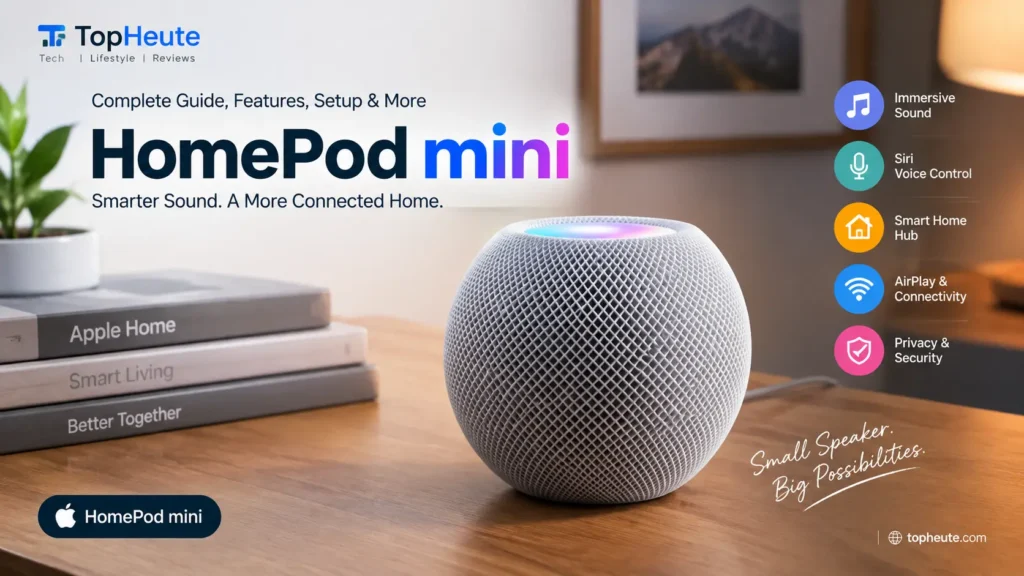
The HomePod mini is a compact Apple smart speaker designed for people who want voice control, wireless audio, and smart-home features in a small device. It is easy to underestimate because of its size, but the speaker sits at the center of several parts of the Apple ecosystem: Siri, Apple Home, AirPlay, multiroom audio,
HomeKit-compatible accessories, Matter devices, and home automation.
For a beginner, the biggest question is simple: what does this small speaker actually do, and is it still useful in 2026? The answer depends less on raw speaker power and more on the devices and services you already use. For someone with an iPhone and Apple Home accessories, it can become a convenient voice-controlled control point for music and connected devices. For someone outside the Apple ecosystem, its value can be more limited.
This guide explains the product from A to Z: design, sound, setup, Siri, connectivity, smart-home control, sensors, privacy, comparisons, troubleshooting, and buying value. The goal is to help you understand not only what each feature does, but why it matters in everyday use.
What Is HomePod mini?
The HomePod mini is Apple’s small smart speaker. It plays music and other audio, responds to Siri voice requests, works with compatible Apple services and devices, and can help control supported smart-home accessories through the Apple Home ecosystem.
At its core, it combines three roles in one device: a wireless speaker, a voice assistant speaker, and a smart-home controller. You can ask Siri to play music, set timers, check information, send supported requests through your Apple devices, or control compatible lights, plugs, sensors, and other accessories.
The key point is that it is designed around ecosystem integration. It works best when the rest of your technology already includes Apple devices and supported smart-home products.
HomePod mini at a Glance
Compact smart speaker designed for the Apple ecosystem.
Voice control through Siri.
Room-aware audio processing and computational audio.
AirPlay support for wireless audio streaming.
Multiroom audio with compatible Apple speakers.
Stereo pairing when two compatible units are used together.
Apple Home integration for supported smart-home accessories.
Support for relevant smart-home technologies, including Matter-based accessories where compatible.
Temperature and humidity sensing capabilities.
Touch controls on the top surface.
Designed with privacy features associated with Apple’s smart-home and voice ecosystem.
HomePod mini Design and Available Colors
The design is intentionally simple. The device uses a rounded, compact shape covered in mesh fabric, allowing it to blend into bedrooms, kitchens, offices, and other living spaces without taking up much room. A touch-sensitive illuminated surface sits on top and provides direct controls.
Color availability can vary by market and over time, so shoppers should check the current regional Apple Store before purchasing. The important design advantage is not the color itself; it is the small footprint. You can place the speaker on a bedside table, shelf, desk, kitchen counter, or other stable surface without needing the space required by a larger smart speaker.
HomePod mini Size and Weight
Its compact dimensions are one of its main strengths. The speaker is small enough for rooms where a larger audio system would feel unnecessary or intrusive. The reduced size also makes it easier to create a multiroom setup because several units can be distributed around a home.
Small size does create a trade-off. Physical speaker volume and bass output are limited compared with larger speakers. The audio system therefore relies heavily on digital processing to make the sound feel fuller than the enclosure suggests.
HomePod mini Specifications
Important specifications should be understood as a system rather than a list of isolated numbers. The speaker includes wireless connectivity, Siri support, audio processing, touch controls, smart-home networking capabilities, and sensors that support specific environmental and home functions.
Before buying, pay particular attention to compatibility rather than only technical specifications. Your iPhone, Apple Account setup, Wi-Fi environment, Apple Home configuration, and smart accessories can affect which features are useful in your home.
HomePod mini Sound Quality
Sound quality is impressive for a compact smart speaker, especially in small and medium-sized rooms. The presentation is designed to sound broad and balanced rather than simply loud. Vocals are generally clear, and the digital processing helps create a fuller impression than the physical size might suggest.
However, expectations should remain realistic. A small speaker cannot produce the same deep, physical bass or room-filling output as a larger dedicated speaker. If your priority is maximum volume, cinematic low-end impact, or large-room performance, a larger speaker may be a better fit.
For everyday listening—music during work, podcasts, background audio, and casual entertainment—the compact format is one of its strongest advantages.
How Does HomePod mini Produce 360-Degree Sound?
The speaker is designed to distribute sound around the device rather than aiming it in only one narrow direction. This makes placement easier because listeners do not always need to sit directly in front of it.
The practical benefit is consistency. Whether the device is placed on a counter or shelf, people moving around the room can still hear the audio without needing a traditional front-facing speaker position.
The result should not be confused with the physical output of a large surround-sound system. Instead, it is an approach intended to create useful room coverage from a very small enclosure.
HomePod mini Audio Technology and Computational Audio
Computational audio is one of the reasons the compact enclosure can deliver a sound that feels larger than expected. The speaker uses processing to manage the audio signal and adapt how sound is delivered.
In simple terms, software and hardware work together. The physical driver produces sound, while digital processing helps manage frequencies and overall output. This is different from judging a speaker only by its size or a single hardware specification.
For users, the important takeaway is that the listening experience comes from the complete audio system, not only the size of the speaker driver.
HomePod mini Bass, Vocals and Overall Audio Performance
Vocals and midrange detail are especially important for everyday listening because they affect speech, podcasts, acoustic music, and many popular songs. The compact Apple speaker is generally aimed at balanced listening rather than extreme bass.
Bass is present, but there are physical limits. Deep low frequencies require moving more air, which larger speaker enclosures can generally do more easily. If powerful bass is your top priority, consider a larger audio product.
Overall performance is best judged by use case. For a bedroom, office, kitchen, or small living area, the combination of compact size and processed audio can be very practical.
What Can HomePod mini Do?
It can play audio, respond to voice commands through Siri, help manage timers and reminders, participate in multiroom audio, and control compatible smart-home accessories. Depending on your Apple services and device configuration, it can also interact with other parts of your Apple ecosystem.
A useful way to think about the speaker is this: it can become a hands-free interface for routine actions. Instead of opening an app for every simple task, you can use voice commands for supported functions.
Play music and other supported audio.
Control compatible smart-home accessories.
Set alarms, timers, and reminders.
Use Siri for supported voice requests.
Send audio to different rooms through multiroom playback.
Create a stereo audio setup with a compatible second speaker.
Use AirPlay for supported wireless streaming.
HomePod mini Siri and Voice Control
Siri is the voice interface that turns the speaker from a standard wireless audio device into a hands-free assistant. You can speak naturally for many supported tasks, although the exact result depends on language, region, connected services, and the devices in your Apple setup.
For example, voice control can be useful when your hands are busy cooking, cleaning, or working. Instead of reaching for a phone, you can request a timer, change compatible lights, or control supported playback.
The most important limitation is ecosystem dependence. Siri features are most useful when your Apple devices, services, permissions, and smart-home accessories are configured correctly.
HomePod mini Music, Podcasts and Radio
Music is one of the main reasons people buy the device. The speaker is designed to work naturally with supported Apple audio experiences and can also participate in wireless audio playback through compatible features and services.
For podcasts and radio-style listening, voice control can be particularly convenient because the user does not always need to pick up a phone. The experience depends on service availability and account configuration in your region.
A practical advantage is continuity: you can start with one device, then use compatible wireless playback options to listen in another room or across multiple speakers.
HomePod mini Touch Controls
Voice control is convenient, but physical controls are useful when you do not want to speak. The illuminated touch surface provides direct interaction for common functions such as playback and volume control.
Touch controls are especially useful at night, in shared spaces, or when background noise makes voice recognition less convenient. They also give users a simple fallback when they prefer manual control.
HomePod mini AirPlay and Audio Streaming
AirPlay is a key part of the Apple audio experience because it enables compatible devices to send audio wirelessly. This makes the speaker more than an isolated playback device.
For example, you may start audio on an iPhone, iPad, or another compatible Apple device and then send it to a supported speaker. The exact options depend on the source app, device, network, and current software.
This ecosystem integration is one of the strongest reasons Apple users may prefer this speaker over a competing platform.
HomePod mini Multiroom Audio
Multiroom audio allows compatible speakers in different rooms to participate in the same listening experience. Instead of turning up one speaker loud enough for the entire home, you can place devices where people actually spend time.
This can be useful in a kitchen and living room combination, across a larger home, or when different areas need different audio arrangements. Network quality matters because wireless audio depends on stable connectivity.
For beginners, the concept is simple: multiple speakers can work as a coordinated audio system rather than as completely independent devices.
How to Use Multiple HomePod mini Speakers
Using several speakers begins with placing each unit in the rooms where you actually need audio or voice access. After setup through the Apple ecosystem, compatible devices can be organized for room-based control and multiroom playback.
A good strategy is to avoid buying several units before testing your first one. Start with the room where voice control or audio will provide the most value. Once you understand how you use it, expanding to other rooms becomes easier.
Place speakers near everyday activity areas.
Use a stable Wi-Fi network.
Keep room assignments organized in Apple Home.
Test voice response from the locations where you normally speak.
Consider a stereo pair for focused listening rather than placing both units randomly.
HomePod mini Stereo Pair Setup
A stereo pair uses two compatible speakers to create left and right audio channels. This can provide a more spacious and focused listening experience than a single unit.
Stereo pairing is most useful when both speakers are placed with sensible spacing in the same listening area. Positioning matters: one unit should not be hidden behind furniture while the other is placed in an open area.
Before planning a stereo setup, check current compatibility rules and software requirements for your specific devices.
HomePod mini Smart Home Features
The smart-home role is one of the product’s most important features. Through Apple Home and compatible accessories, the speaker can provide a convenient voice interface for actions around the house.
Examples include controlling supported lights, plugs, sensors, thermostatic equipment, and other connected accessories. Compatibility is crucial because not every smart-home product works with every ecosystem in the same way.
For a beginner, the easiest approach is to choose accessories specifically marketed as compatible with your intended smart-home platform rather than assuming that every Wi-Fi gadget will work automatically.
HomePod mini as a Smart Home Hub
A smart-home hub helps coordinate compatible accessories and can support remote access and automation functions depending on the current Apple Home architecture and accessory configuration.
This matters because a smart home is not only about giving voice commands. Automations can make devices respond to time, sensor information, presence, or other supported conditions.
For example, compatible lights might follow a schedule, or a connected accessory may react to an event defined within your smart-home setup. The exact automation options depend on the accessories and software you use.
HomePod mini and the Apple Home App
The Apple Home app acts as a visual control center for compatible accessories. The speaker adds a voice layer to that system.
A simple way to understand the relationship is this: Apple Home is where you organize many devices and automations, while Siri can help you control supported actions without opening the app.
Keeping rooms and accessory names clear is important. Simple names such as ‘Kitchen Light’ or ‘Bedroom Lamp’ can make voice commands easier to remember and troubleshoot.
HomePod mini HomeKit Compatibility
HomeKit refers to Apple’s smart-home framework and ecosystem for compatible accessories. When shopping for connected devices, compatibility information is more important than marketing language such as ‘smart’ or ‘Wi-Fi enabled.’
A smart bulb can connect to Wi-Fi and still have limited usefulness in your preferred ecosystem if it does not support the right platform or bridge. Always check compatibility before buying.
This is one of the biggest beginner mistakes: purchasing accessories first and checking ecosystem support afterward.
HomePod mini Matter Support
Matter is a smart-home connectivity standard designed to improve interoperability between supported ecosystems and accessories. Its presence can make it easier for compatible products to work across more than one platform, but it does not mean every feature is identical everywhere.
Matter support should therefore be treated as a compatibility foundation, not a guarantee that every advanced feature of every accessory will work in exactly the same way.
Before buying a Matter device, check which functions are supported within your chosen ecosystem and whether the accessory requires additional hardware.
HomePod mini Thread Networking Technology
Thread is a low-power mesh networking technology used by compatible smart-home devices. It is designed for connected accessories that benefit from reliable communication without relying on every device behaving like a traditional Wi-Fi client.
The value for a user is practical rather than technical: compatible devices may communicate through a mesh-style network architecture designed for smart-home use.
Thread support and device roles can vary, so buyers building a large smart home should verify the requirements of each accessory rather than relying only on one label.
Controlling Smart Home Devices with HomePod mini
Voice control works best when your accessories are organized logically. Name devices clearly, assign them to rooms, and avoid giving several accessories nearly identical names.
Useful commands usually follow a simple pattern: specify the action and the accessory or room. For example, supported lights can be controlled by room or device name.
The most reliable smart-home experience comes from planning before installation. Decide which rooms matter, which accessories you want to automate, and whether you need remote access.
HomePod mini Temperature and Humidity Sensors
Built-in environmental sensing can provide useful information about indoor conditions. Temperature and humidity readings may help you understand whether a room is becoming unusually warm, cold, dry, or humid.
These readings are most useful when viewed as part of a broader home environment. A single sensor does not automatically solve heating, cooling, or moisture problems, but it can provide information that supports monitoring and compatible automations.
For critical environmental decisions, always understand the limits of consumer sensors and use dedicated equipment where professional-grade accuracy is required.
HomePod mini Sound Recognition and Home Safety Features
Sound recognition can support awareness of certain important sounds in supported configurations. This type of feature is intended to provide additional awareness rather than replace certified smoke alarms, carbon monoxide alarms, or professional security systems.
That distinction is important. Smart notifications can be helpful, but they should not be treated as a substitute for required safety equipment.
If you use home safety features, test notifications and account settings carefully so you understand what the system can and cannot detect.
HomePod mini and iPhone
The iPhone is central to setup and everyday management. It helps users configure the speaker, manage Apple Home settings, access supported audio controls, and connect the device to the wider Apple ecosystem.
For most users, the relationship between the speaker and iPhone is one of convenience. You can move between handheld control and voice control depending on the situation.
The strongest experience generally comes when both devices are updated and connected to a stable home network.
HomePod mini and iPad
An iPad can also participate in the Apple ecosystem surrounding the speaker. This can be useful for users who prefer a larger screen for smart-home controls or media management.
The iPad is particularly practical as a household device because multiple people may use it for controlling compatible accessories and viewing room organization.
Feature availability can vary with account setup and current software, so keep the devices involved in your home configuration updated.
HomePod mini and Apple TV
Apple TV can complement a smart-home and entertainment setup. Depending on compatible hardware and current software capabilities, these devices can work together as part of a broader Apple entertainment environment.
For home entertainment, the main benefit is ecosystem consistency. Audio, media control, and smart-home management can feel more integrated when compatible Apple devices are used together.
Users should verify the exact audio and home-theater capabilities supported by their specific Apple TV and speaker models before planning a setup.
HomePod mini and Mac
A Mac can send supported audio through AirPlay and participate in the wider Apple ecosystem. This can be useful for casual listening while working or for moving audio from a computer to another part of the room.
For professional audio work, however, wireless convenience should not automatically be confused with a dedicated low-latency studio monitor setup. Choose equipment based on the job.
HomePod mini Ultra Wideband and Device Proximity Features
Ultra Wideband and proximity-aware features can improve certain interactions between compatible Apple devices. The experience depends on the hardware generation and software available on each device.
The main idea is convenience: compatible devices can recognize nearby relationships and support interactions that feel more connected than ordinary Bluetooth pairing.
Because these features depend heavily on compatible hardware, users should check their specific iPhone and other device models.
Explore more amazing, latest, and insightful articles Visit Bodycon Dress:
How to Set Up HomePod mini
Setup is designed to be straightforward, but beginners should prepare first. Make sure your iPhone or other required Apple device is updated, signed in to the correct Apple Account, and connected to the Wi-Fi network you intend to use.
Connect the speaker to power.
Place it on a stable surface with reasonable open space around it.
Unlock the compatible Apple device used for setup.
Follow the on-screen setup instructions when the device is detected.
Choose the correct room in your Apple Home configuration.
Confirm Wi-Fi and Apple Account settings.
Test audio playback and a simple Siri request.
Update software when prompted or when an update is available.
If setup does not begin automatically, check Bluetooth and Wi-Fi settings on the setup device, confirm that the devices are physically close enough, and restart the relevant hardware before attempting more complicated troubleshooting.
HomePod mini Wi-Fi and Connectivity
A stable Wi-Fi connection is essential because many features depend on network communication. Audio streaming, smart-home control, software updates, and interactions with connected services can all be affected by weak or unstable networking.
For better reliability, avoid placing the speaker in a dead zone where phones and other devices already struggle to maintain a connection.
If your home is large, a quality mesh Wi-Fi system may improve general connectivity. The best solution depends on your home’s layout, construction materials, and existing network equipment.
How to Use HomePod mini
The easiest way to use the device is to start with three everyday functions: audio, timers, and smart-home control. This prevents the experience from becoming overwhelming.
First, ask Siri to play supported content or use AirPlay from a compatible device. Next, test practical voice commands such as setting a timer. Finally, if you have compatible accessories, try controlling one light or plug.
Once these basics work reliably, you can expand into multiroom audio, automations, environmental monitoring, and more advanced Apple Home routines.
HomePod mini Accessibility Features
Voice interaction can be useful for people who find frequent touchscreen interaction inconvenient. Accessibility, however, is personal, and the usefulness of a feature depends on individual needs and the current software configuration.
The broader Apple ecosystem includes accessibility settings across devices, which can complement voice-based interaction. Users should explore current accessibility options on the Apple devices they use alongside the speaker.
The best setup is one that reduces friction rather than forcing every task through voice control.
HomePod mini Privacy and Security
A smart speaker is always connected to personal spaces, so privacy should be part of the buying decision. Users should understand which services are enabled, which accounts are connected, and what permissions are required.
Good security habits include using a strong Apple Account password, enabling appropriate account protection, keeping devices updated, and reviewing who has access to the Apple Home configuration.
Privacy also includes practical household decisions. Think about where the speaker is placed and which people can use voice control in that environment.
HomePod mini vs HomePod
The most obvious difference is size and audio ambition. The larger HomePod is aimed at users who want stronger sound and greater room presence, while the mini version prioritizes compact placement and lower cost.
Choose the smaller option if you want a bedside, kitchen, office, or multiroom speaker where space matters. Choose a larger speaker if sound scale and bass are more important than compactness.
The better product is therefore not universal. It depends on room size, budget, listening habits, and how important smart-home functionality is compared with audio performance.
HomePod mini vs Amazon Echo
This comparison is primarily about ecosystem preference. Amazon Echo products are built around Alexa, while Apple’s compact speaker is built around Siri and Apple services.
An iPhone-heavy household that already uses Apple Home may find Apple’s ecosystem more natural. A household with Alexa-compatible routines, skills, or devices may prefer Echo.
Before comparing speaker sound, compare the platform you want to live with every day. Voice assistant preferences, smart-home accessories, music services, and privacy expectations all matter.
HomePod mini vs Google Nest
The main difference is again ecosystem integration. Google Nest speakers are closely connected to Google’s services and Assistant ecosystem, while Apple’s speaker is designed around Siri and Apple devices.
Choose based on your existing technology. If your home and personal devices are centered on Apple, the integration may be more convenient. If your digital life is deeply connected to Google services, another platform may fit better.
Smart-speaker comparisons should always include the cost of switching ecosystems. A cheaper speaker can become less convenient if it requires replacing accessories or changing routines.
HomePod mini Pros and Cons
Pros:
Very compact and easy to place.
Strong integration with the Apple ecosystem.
Convenient Siri voice control for supported tasks.
Useful Apple Home and smart-home capabilities.
Multiroom audio support.
Stereo pairing capability.
AirPlay integration.
Environmental sensing features.
Useful for rooms where a large speaker would be unnecessary.
Cons:
Best experience depends heavily on Apple devices and services.
Bass and maximum room output are limited by compact size.
Some smart-home features depend on accessory compatibility.
Wi-Fi quality can affect the experience.
It may offer less value to users outside the Apple ecosystem.
Voice assistant performance and available features can vary by language and region.
Common HomePod mini Problems and How to Fix Them
Most problems fall into a few categories: power, Wi-Fi, software, account configuration, Apple Home organization, or a temporary communication issue.
A sensible troubleshooting order is usually better than randomly changing settings. Start with the simplest cause, then move toward more disruptive steps.
Check power and the physical connection.
Confirm Wi-Fi is working on another device.
Restart the speaker and the device used for control.
Check for available software updates.
Confirm the correct Apple Account and Apple Home setup.
Review accessory names and room assignments.
Use a full reset only after simpler steps fail.
HomePod mini Not Responding to Siri
If Siri is not responding, first check whether the device has power and network connectivity. Background noise, distance, language settings, and account configuration can also affect voice interaction.
Try speaking from a normal distance in a quieter environment. Then test whether audio playback and Wi-Fi-dependent functions are working. If several online features fail together, the network may be the underlying issue.
Restarting can resolve temporary software or connection problems. If the issue continues, review the current Siri and device settings in the relevant Apple configuration.
HomePod mini Not Connecting to Wi-Fi
Start by confirming that other devices can use the same network. If phones and tablets also struggle, fix the router or internet connection before focusing on the speaker.
If the network is healthy, restart the speaker and the router, then check whether recent network changes—such as a new Wi-Fi name, password, or router—occurred.
Avoid repeatedly resetting the device before checking basic network conditions. A reset can create extra setup work without fixing the actual Wi-Fi problem.
HomePod mini Not Playing Music
If the speaker responds but does not play audio, check whether the requested service is available and correctly configured. Also test a different source or use AirPlay from a compatible device.
If one app fails but another audio source works, the problem may be related to the service rather than the speaker hardware.
Volume, network stability, account access, and software updates should also be checked before assuming there is a physical fault.
HomePod mini Not Appearing in the Home App
This problem can be caused by account mismatch, network differences, or a setup process that did not complete correctly. Confirm that the controlling device is signed in to the intended Apple Account and connected appropriately.
Restart the app and relevant devices, then verify the current home configuration. If multiple homes exist in Apple Home, make sure you are viewing the correct one.
If the problem began after changing routers or account settings, review those changes first because they often explain why previously working accessories disappear.
HomePod mini Audio Problems
Audio problems can include low volume, distorted sound, interruptions, or no playback. Begin by checking the source: try another app or another audio stream.
Next, inspect placement. A speaker pressed tightly against surrounding objects or placed in an unsuitable location may not sound its best.
If interruptions occur, Wi-Fi stability may be more relevant than the speaker itself. Persistent distortion at normal levels may require further inspection or official service support.
How to Restart HomePod mini
Restarting is useful for temporary software or connectivity problems because it clears the current operating state without necessarily removing your entire configuration.
Use the normal restart controls available in the current Apple Home and device settings when possible. After the device returns, test the specific problem again before changing additional settings.
A restart should usually come before a full factory reset.
How to Reset HomePod mini
A full reset should be treated as a last-resort troubleshooting step because it can remove the existing configuration and require setup again.
Consider resetting when ordinary restarts, network checks, and software updates have not resolved a persistent issue, or when preparing the device for a new owner.
Before resetting, make sure you know the current Apple Home and account information needed for setup afterward.
HomePod mini Price and Value in 2026
Value in 2026 depends on what you already own. For an Apple-focused household, the speaker can provide several functions at once: compact audio, voice control, AirPlay integration, and a smart-home interface.
For someone who only wants the best possible sound for the money, a dedicated speaker from another category may offer better audio performance. For someone who wants a smart speaker that fits naturally into Apple Home, the value equation is different.
The best buying question is not simply ‘Is it cheap?’ but ‘How many useful tasks will it actually perform in my home?’
Is HomePod mini Worth Buying in 2026?
It can still be worth buying in 2026 if its strengths match your needs. It remains particularly appealing for people who use an iPhone, rely on Apple services, want Siri voice control, or are building a compatible smart home.
It is less compelling if you need powerful bass, a large-room speaker, or a voice assistant platform outside Apple’s ecosystem.
The most accurate answer is therefore conditional: it is worth buying when ecosystem convenience is a priority, not when every buyer is simply searching for the loudest speaker available.
Who Should Buy HomePod mini?
iPhone users who want a compact smart speaker.
People building or expanding an Apple Home setup.
Users who want voice control for compatible accessories.
People who value AirPlay and multiroom audio.
Apartment, bedroom, kitchen, and office users with limited space.
Households that want a simple entry point into Apple-centered smart-home control.
Who Should Avoid HomePod mini?
Users whose devices and services are primarily outside the Apple ecosystem.
People who need very powerful bass or large-room output.
Buyers looking for a professional studio speaker.
Users who do not want to depend on Wi-Fi and smart-home ecosystems.
Households already deeply invested in a different voice-assistant platform.
Does HomePod mini Still Make Sense in 2026?
Yes, for the right user. The product’s relevance is not based only on being a speaker. Its continuing value comes from ecosystem integration, voice control, smart-home compatibility, AirPlay, and compact placement.
Technology products can remain useful even when newer alternatives exist, provided their software support and ecosystem role continue to meet user needs. The main question for a 2026 buyer is whether the current feature set solves their actual daily problems.
If you want a small Apple smart speaker that can also participate in home automation, it still makes practical sense. If your main goal is premium audio performance, compare it with larger speakers before buying.
HomePod mini FAQs
What is the main purpose of the HomePod mini?
Its main purpose is to combine compact wireless audio, Siri voice interaction, and supported Apple smart-home control in one device.
Can you use it without an iPhone?
Setup and the overall ecosystem experience are designed around compatible Apple devices. The exact level of independence available for individual functions depends on the current software and services being used.
Does it work as a smart-home controller?
It can participate in the Apple Home ecosystem and support compatible smart-home control, depending on your current configuration and accessories.
Is the sound good enough for a living room?
For casual listening in a small or moderate space, it can work well. For large rooms or buyers who want deep bass and higher output, a larger speaker may be more suitable.
Can two speakers create a stereo setup?
Compatible units can be configured as a stereo pair when current device and software requirements are met.
Does it support Matter devices?
It can support compatible Matter-based smart-home setups, but the exact functionality depends on the accessory, Apple Home configuration, and current software.
Should you buy one in 2026?
Buy it if you want compact audio and smart-home convenience within the Apple ecosystem. Consider alternatives if your priority is maximum sound output or another voice-assistant platform.
Conclusion
The HomePod mini is best understood as an Apple ecosystem device rather than simply a small speaker. Its compact design, computational audio, Siri voice control, AirPlay, multiroom playback, smart-home integration, and environmental features give it several roles in one product.
For beginners, the easiest path is to start small: set it up, test music, use a timer, and connect one compatible smart accessory. From there, you can decide whether multiroom audio, stereo pairing, Matter devices, Thread networking, and advanced Apple Home automations are worth adding.
In 2026, the strongest reason to choose it is convenience. When your phone, services, and home accessories already fit the Apple ecosystem, the speaker can become a simple voice-controlled part of daily life. When that ecosystem connection is missing, it is important to compare other smart speakers before making a final decision.
Explore more amazing, latest, and insightful articles Visit Midland Credit Management.